
Docker部署Nginx HTTPS服务的实现步骤
作者:tzhou64452
本文主要介绍了Docker部署Nginx HTTPS服务,实现HTTP到HTTPS的自动跳转,并解决中文乱码、证书挂载、镜像检测等问题的步骤,具有一定的参考价值,感兴趣的可以了解一下
一、文档说明
1.1 适用环境
- 操作系统:CentOS 7(64位)
- 核心目标:基于 Docker 部署 Nginx 服务,实现 HTTP 自动跳转 HTTPS,解决中文乱码、证书挂载、镜像检测等问题
- 前置条件:服务器以 root 用户登录,且能访问外网(已手动拉取
nginx:1.21镜像)
1.2 最终效果
- 访问
http://192.168.10.110自动跳转至https://192.168.10.110 - HTTPS 页面正常显示中文,无乱码
- Nginx 容器开机自启,配置/证书/日志持久化存储
二、详细部署步骤
步骤1:环境检查与基础准备
1.1 检查用户权限(必须 root)
# 验证当前用户是否为 root
id -u
# 输出 0 表示为 root 用户,否则切换 root:su root
1.2 安装基础工具(解决依赖)
# 安装 lsof(端口检测)、openssl(证书生成)等工具
yum install -y lsof openssl net-tools wget curl &>/dev/null
1.3 检查端口可用性(80/443 必须空闲)
# 检查 80 端口
lsof -i:80
# 检查 443 端口
lsof -i:443

# 若端口被占用,关闭占用进程(示例:关闭 80 端口占用进程)
kill -9 $(lsof -t -i:80)
步骤2:创建工作目录(统一管理资源)
# 创建核心目录(配置/证书/页面/日志)
mkdir -p /opt/nginx-https/{conf,cert,wwwroot,logs}
# 设置目录权限(避免容器挂载后权限不足)
chmod -R 755 /opt/nginx-https
步骤3:生成 SSL 自签名证书
# 进入证书目录
cd /opt/nginx-https/cert

# 1. 生成 2048 位私钥(无密码)
openssl genrsa -out nginx.key 2048 &>/dev/null

# 2. 生成证书请求文件(无交互,适配主机 IP)
openssl req -new -key nginx.key -out nginx.csr -subj "/C=CN/ST=Beijing/L=Beijing/O=Test/OU=IT/CN=192.168.10.110" &>/dev/null

# 3. 生成自签名证书(有效期 365 天)
openssl x509 -req -days 365 -in nginx.csr -signkey nginx.key -out nginx.crt &>/dev/null

# 4. 验证证书文件(必须存在 nginx.key 和 nginx.crt)
ls -l /opt/nginx-https/cert/
# 输出如下则成功:
# -rw-r--r-- 1 root root 1027 12月 28 23:00 nginx.crt
# -rw-r--r-- 1 root root 1086 12月 28 23:00 nginx.csr
# -rw-r--r-- 1 root root 1675 12月 28 23:00 nginx.key

# 5. 设置证书权限(Nginx 需读取权限)
chmod 644 /opt/nginx-https/cert/nginx.key /opt/nginx-https/cert/nginx.crt
步骤4:编写 Nginx HTTPS 配置文件
4.1 创建配置文件
vim /opt/nginx-https/conf/nginx.conf
4.2 粘贴完整配置(含 UTF-8 编码,解决中文乱码)
worker_processes  1;
error_log  /var/log/nginx/error.log warn;
pid        /var/run/nginx.pid;

events {
    worker_connections  1024;
}

http {
    # 核心:解决中文乱码,全局指定 UTF-8 编码
    charset utf-8;

    include       /etc/nginx/mime.types;
    default_type  application/octet-stream;
    log_format  main  '$remote_addr [$time_local] "$request" '
                      '$status $body_bytes_sent "$http_referer" '
                      '"$http_user_agent" "$http_x_forwarded_for"';
    access_log  /var/log/nginx/access.log  main;
    sendfile        on;
    keepalive_timeout  65;

    # HTTP 服务:自动跳转 HTTPS
    server {
        listen       80;
        server_name  192.168.10.110;
        return 301 https://$host$request_uri;
    }

    # HTTPS 核心配置
    server {
        listen       443 ssl;
        server_name  192.168.10.110;

        # 证书挂载路径(容器内路径,对应宿主机 /opt/nginx-https/cert)
        ssl_certificate      /etc/nginx/cert/nginx.crt;
        ssl_certificate_key  /etc/nginx/cert/nginx.key;

        # SSL 优化配置
        ssl_session_cache    shared:SSL:1m;
        ssl_session_timeout  5m;
        ssl_ciphers  HIGH:!aNULL:!MD5;
        ssl_prefer_server_ciphers  on;

        # 静态页面目录(挂载宿主机 /opt/nginx-https/wwwroot)
        location / {
            root   /usr/share/nginx/html;
            index  index.html index.htm;
        }

        # 错误页面配置
        error_page   500 502 503 504  /50x.html;
        location = /50x.html {
            root   /usr/share/nginx/html;
        }
    }
}
4.3 验证配置语法(关键:挂载证书目录验证)
# 用容器内 Nginx 验证配置(同时挂载配置和证书目录)
docker run --rm \
-v /opt/nginx-https/conf/nginx.conf:/etc/nginx/nginx.conf \
-v /opt/nginx-https/cert:/etc/nginx/cert \
nginx:1.21 nginx -t

# 输出如下则配置正确:
# nginx: the configuration file /etc/nginx/nginx.conf syntax is ok
# nginx: configuration file /etc/nginx/nginx.conf test is successful
步骤5:创建测试页面(解决中文乱码)
# 编辑测试页面,指定 UTF-8 编码
vim /opt/nginx-https/wwwroot/index.html
粘贴以下内容:
<!DOCTYPE html>
<html>
<head>
    <meta charset="UTF-8">
</head>
<body>
    <h1>Nginx HTTPS 部署成功!</h1>
    <p>主机IP:192.168.10.110</p>
</body>
</html>
设置页面权限:
chmod 644 /opt/nginx-https/wwwroot/index.html
步骤6:启动 Nginx 容器
6.1 清理旧容器(避免冲突)
# 停止并删除同名旧容器(若存在)
docker stop nginx-https &>/dev/null
docker rm nginx-https &>/dev/null
6.2 启动新容器(完整挂载所有目录)
docker run -d \
--name nginx-https \
--privileged=true \
-p 80:80 \
-p 443:443 \
-v /opt/nginx-https/conf/nginx.conf:/etc/nginx/nginx.conf \
-v /opt/nginx-https/cert:/etc/nginx/cert \
-v /opt/nginx-https/wwwroot:/usr/share/nginx/html \
-v /opt/nginx-https/logs:/var/log/nginx \
--restart=always \
nginx:1.21
参数说明:
| 参数 | 作用 |
|---|---|
| --name nginx-https | 容器命名为 nginx-https |
| --privileged=true | 提升容器权限,解决挂载目录权限不足问题 |
| -p 80:80/-p 443:443 | 宿主机端口映射到容器端口 |
| -v 宿主机路径:容器路径 | 目录挂载,实现配置/证书/页面/日志持久化(修改宿主机文件无需重建容器) |
| --restart=always | 容器随 Docker 开机自启 |
6.3 验证容器启动状态
# 查看容器是否运行(状态为 Up 则成功)
docker ps | grep nginx-https

# 输出示例:
# abc123456789   nginx:1.21   "/docker-entrypoint.…"   10 seconds ago   Up 9 seconds   0.0.0.0:80->80/tcp, 0.0.0.0:443->443/tcp   nginx-https
三、验证部署结果
3.1 命令行验证
3.1.1 验证 HTTP 自动跳转
curl -I http://192.168.10.110
# 输出 301 跳转则成功:
# HTTP/1.1 301 Moved Permanently
# Location: https://192.168.10.110/
3.1.2 验证 HTTPS 访问(忽略自签名证书)
curl -k https://192.168.10.110
# 输出测试页面 HTML 内容则成功(无乱码)
3.2 浏览器验证
- 打开浏览器,访问
https://192.168.10.110; - 忽略“不安全连接”警告(自签名证书正常现象);
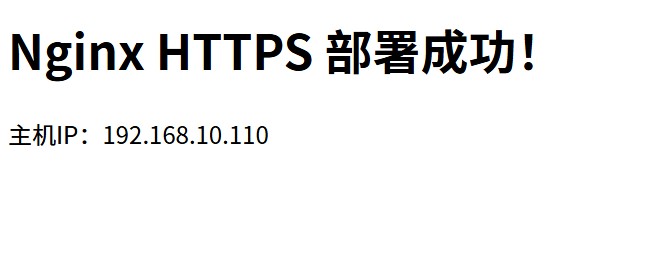
- 页面显示“Nginx HTTPS 部署成功!主机IP:192.168.10.110”,中文无乱码则完成。
四、常见问题排查
4.1 镜像检测失败
现象:提示“nginx:1.21 镜像不存在”,但已拉取;
解决:用格式化命令验证镜像:
docker images --format "{{.Repository}}:{{.Tag}}" | grep nginx:1.21
# 输出 nginx:1.21 则镜像存在,重新执行启动命令即可
4.2 证书文件不存在
现象:Nginx 配置测试提示“cannot load certificate”;
解决:
# 检查证书文件是否存在
ls -l /opt/nginx-https/cert/
# 重新生成证书(步骤3),确保 nginx.key 和 nginx.crt 存在
4.3 中文乱码
现象:页面中文显示为方框/乱码;
解决:
- 确认测试页面添加
<meta charset="UTF-8">; - 确认 Nginx 配置
http块内添加charset utf-8; - 重启容器:
docker restart nginx-https。
4.4 端口占用
现象:容器启动失败,提示端口被占用;
解决:
# 查找占用端口的进程
lsof -i:80
# 关闭进程(示例)
kill -9 $(lsof -t -i:80)
五、日常运维命令
5.1 容器启停/重启
# 启动
docker start nginx-https
# 停止
docker stop nginx-https
# 重启(配置修改后生效)
docker restart nginx-https
5.2 查看日志
# 查看容器启动日志
docker logs nginx-https
# 查看 Nginx 访问日志
cat /opt/nginx-https/logs/access.log
# 查看 Nginx 错误日志
cat /opt/nginx-https/logs/error.log
5.3 修改配置后生效
# 1. 修改宿主机配置文件
vim /opt/nginx-https/conf/nginx.conf
# 2. 验证配置语法
docker run --rm -v /opt/nginx-https/conf/nginx.conf:/etc/nginx/nginx.conf -v /opt/nginx-https/cert:/etc/nginx/cert nginx:1.21 nginx -t
# 3. 重启容器
docker restart nginx-https
5.4 删除容器(如需重装)
docker stop nginx-https && docker rm nginx-https
# 可选:删除工作目录(谨慎操作)
rm -rf /opt/nginx-https
到此这篇关于Docker部署Nginx HTTPS服务的实现步骤的文章就介绍到这了,更多相关Docker部署Nginx HTTPS服务内容请搜索脚本之家以前的文章或继续浏览下面的相关文章希望大家以后多多支持脚本之家!