
IDEA配置Java类方法注释模板实践
作者:菜鸟中的拖拉机
一、类注释模板
File -> Settings -> Editor -> File and Code Templates -> Files
选择Class , Interface ,Enum 等等,我们都可以看到,在右侧区域中,在public class 上面,都有一行 #parse(“File Header.java”)

这句代码是引入了File Header.java文件,作为我们创建的Class Interface ,Enum 等文件的注释,那么这个类在哪呢,我们可以看到,在 Files 右侧,有一个 Includes 选项,
在这里,我们可以定义各种的模板,在需要的地方去引入这个模板,这里已经在类文件中引入了File Header.java 模板,那我们就更改这个模板成为我们想设置成的样子
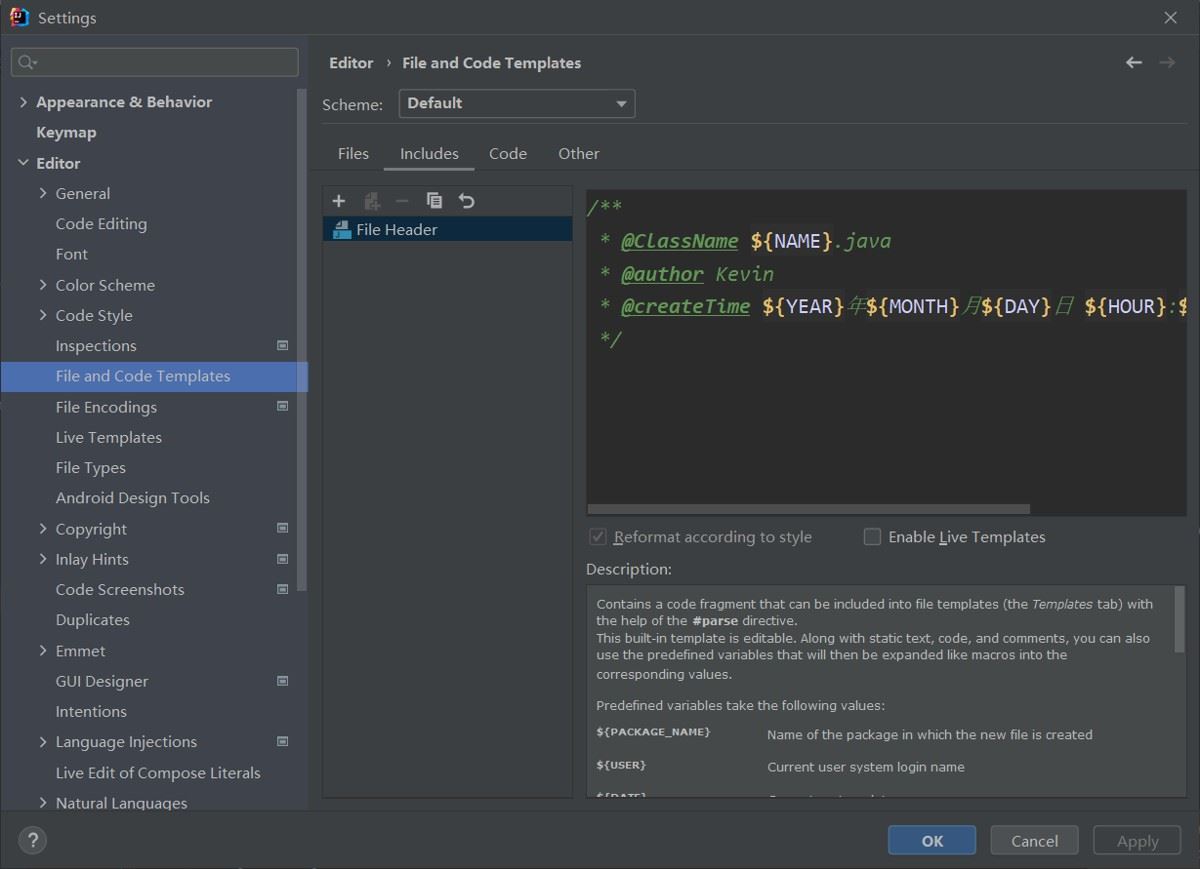
自定义注释模板
/**
 * @className: ${NAME}
 * @author: Kevin
 * @date:  ${DATE}
 **/
新建接口文件自动生成注释,效果如下
/**
 * @className: CrowdService
 * @author: Kvein
 * @date: 2022年05月12日 15:33:00
 **/
public interface CrowdService {
}
注释模板不完全变量参考表
| 预定义变量 | 描述信息 |
|---|---|
| ${NAME} | the name of the current file |
| ${PACKAGE_NAME} | name of the package in which the new file is created |
| ${USER} | current user system login name |
| ${DATE} | current system date |
| ${TIME} | current system time |
| ${YEAR} | current year |
| ${MONTH} | current month |
| ${MONTH_NAME_SHORT} | first 3 letters of the current month name. Example: Jan, Feb, etc. |
| ${MONTH_NAME_FULL} | full name of the current month. Example: January, February, etc. |
| ${DAY} | current day of the month |
| ${DAY_NAME_SHORT} | first 3 letters of the current day name. Example: Mon, Tue, etc. |
| ${DAY_NAME_FULL} | full name of the current day. Example: Monday, Tuesday, etc. |
| ${HOUR} | current hour |
| ${MINUTE} | current minute |
| ${PROJECT_NAME} | the name of the current project |
二、方法注释模板
File -> Settings -> Editor -> Live Templates
1.在Live Templates 右侧点击+号
添加一个Templates Group,命名为 methodTemplates


2.在刚刚创建的 methodTemplates 下
创建一个 Live Templates ,如下:
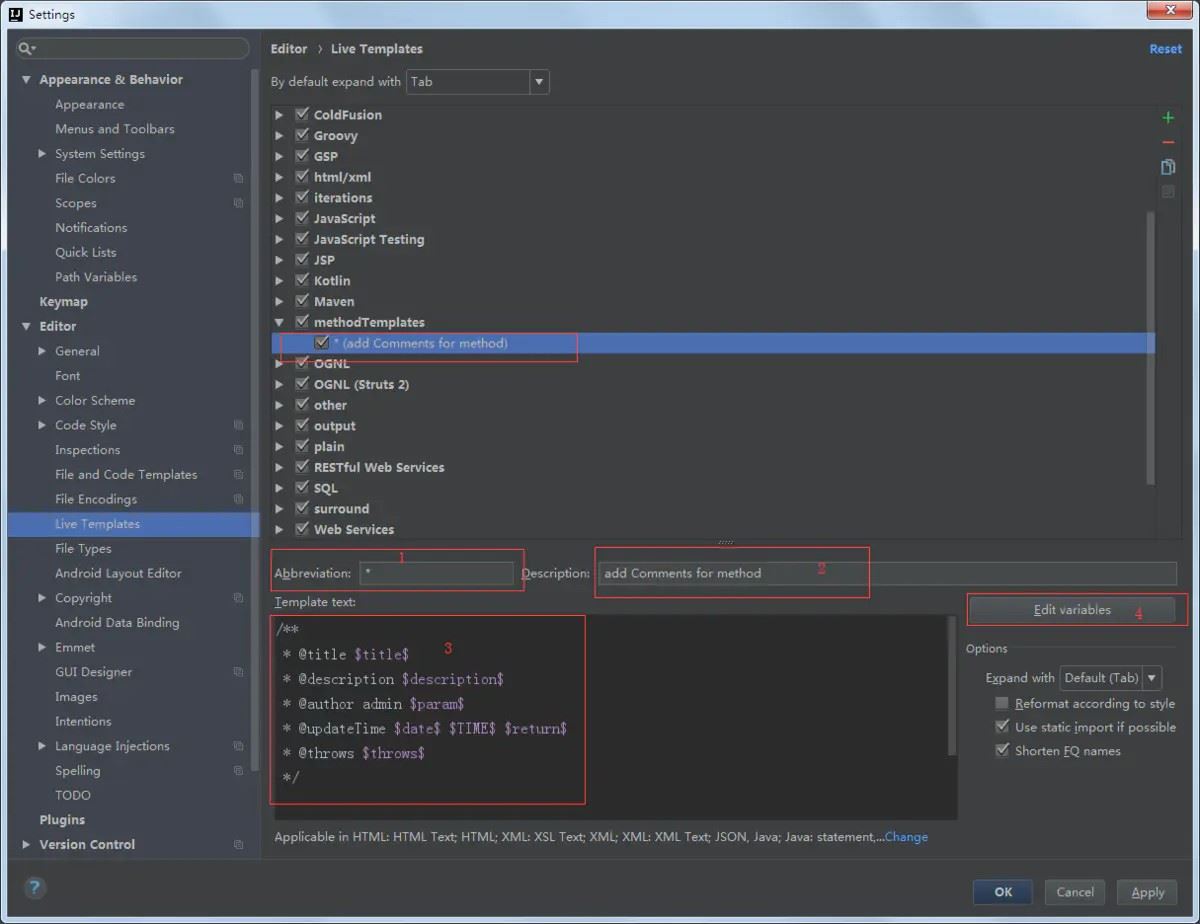
1)、在位置1处: 输入模板的简写码
- 在位置2处:输入模板的描述
- 在位置3处: 输入方法注释模板样式,可变变量要用 变量名变量名变量名 来表示,如:paramparamparam;
- 若不设置成如此的变量名,位置4不可点击,模板如下:
/**
 * @title $title$
 * @author Kevin $param$
 * @updateTime $date$ $TIME$ $return$
 * @throws $throws$
 */
点击位置4处:可编辑定义的变量的值,如下:

变量param 为方法的参数变量,需要根据方法的参数多少进行变化;变量 return 为返回值类型,也要根据方法的返回值进行变化,所一要自行设置该方法,设置的代码如下,复制粘贴即可:
- param :
groovyScript("def result=''; def stop=false; def params=\"${_1}\".replaceAll('[\\\\[|\\\\]|\\\\s]', '').split(',').toList(); if (params.size()==1 && (params[0]==null || params[0]=='null' || params[0]=='')) { stop=true; }; if(!stop) { for(i=0; i < params.size(); i++) {result +=((i==0) ? '\\r\\n' : '') + ((i < params.size() - 1) ? ' * @param: ' + params[i] + '\\r\\n' : ' * @param: ' + params[i] + '')}; }; return result;", methodParameters())
- return :
groovyScript("def result=''; def data=\"${_1}\"; def stop=false; if(data==null || data=='null' || data=='' || data=='void' ) { stop=true; }; if(!stop) { result += '\\r\\n' + ' * @return: ' + data; }; return result;", methodReturnType())
在位置3下方,点击选择该模板应用的范围,可选Everywhere 表示任何位置都可添加该注释

点击options 中的 Expand with 可选择该模板配合使用的快捷键,如 Tab键,Space 空格键 , Enter 回车键 等等;
- 如在这里设置的模板关键词为 * ,配合使用快捷键为Tab键
- 则在方法中输入 * ,在按下Tab 键,即可按照模板生成注释。

补充说明
方法注释模板不可用在,方法外,若用在方法外 @param 获取不到,注释为 @param null;
类注释模板在文件创建时生成,已创建文件不会触发该模板,会触发方法注释模板。
总结
以上为个人经验,希望能给大家一个参考,也希望大家多多支持脚本之家。