
平面设计 > Illustrator教程 >
Illustrator 绘制矢量性感美女
脚本之家
Ok! I know a lot of you have been waiting for this very moment. So here it is, part 2, all wrapped up in a (H.264 AKA MPEG-4 Part 10) movie for you to download and watch (14.9 MB). You have to excuse the fact that I often have to drag things back into the movie. I’m using just a small portion of my (big) screen, so the center is way out of the capture area (for example when I zoom in or name the layers).
 Oh and again, I'm far from a perfect illustrator, so please ignore my little (bad clicking) mistakes. The idea that everything is been recorded made me a tidy bit nervous :-D
 Here is a short overview of what we'll do: Organize the illustration
Drag paths (using the selection indicator in the Layer's Palette) to a separate layer, give the layer a name and lock it. We repeat these steps till the illustration is well organized in different layers. Make sure you respect the stacking order of things. The hair is separated in 2 layers: the hair in front of the face as a layer at the top and the part of the hair that resides behind the body. Start filling each layer
Fill parts of the illustration by selecting the path and selecting a color in the Swatches palette. Or go for the faster and smarter way and use the Live Paint Bucket tool.
Select a group of paths, select the Live Paint Bucket and click in the paths to make it a Live Paint group (or Object > Live Paint Make). Then select a color and start clicking. You'll notice that you'll be able to give overlapping areas a different color. If you double click the Live Paint bucket, you can also check the 'Strokes' option, this way you'll be able to click on strokes as well and give each part a different stroke width or color.
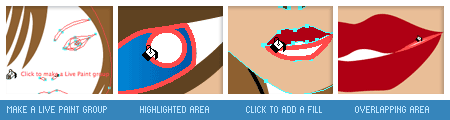
Even paths with a small gap can be taken care of. Just go to Object > Live Paint > Gap Options and define the Gap Detection settings to make sure small gaps are ignored where needed. It is also possible to add new paths to a Live Paint group.
I have only used the Live Paint for the face in my drawing here, but I have to admit that I'm still getting used to working with this new powerful feature.
You might think that now we've added colors to our illustration it's as good as finished, but look at it it's far from finished. It needs some touching up. We need to finalize it by adding some shadows and highlights etc. This is the most fun part in my opinion because the "before and after" effect can be huge and you get the feeling it is really "finished"... but that's all for part 3 of this tutorial. So look out for the final part soon, in the meantime I hope you find part 2 enjoyable to watch and (hopefully) learn something from it. Download QuickTime movie of part 2 Mirror server (if the first one is failing)